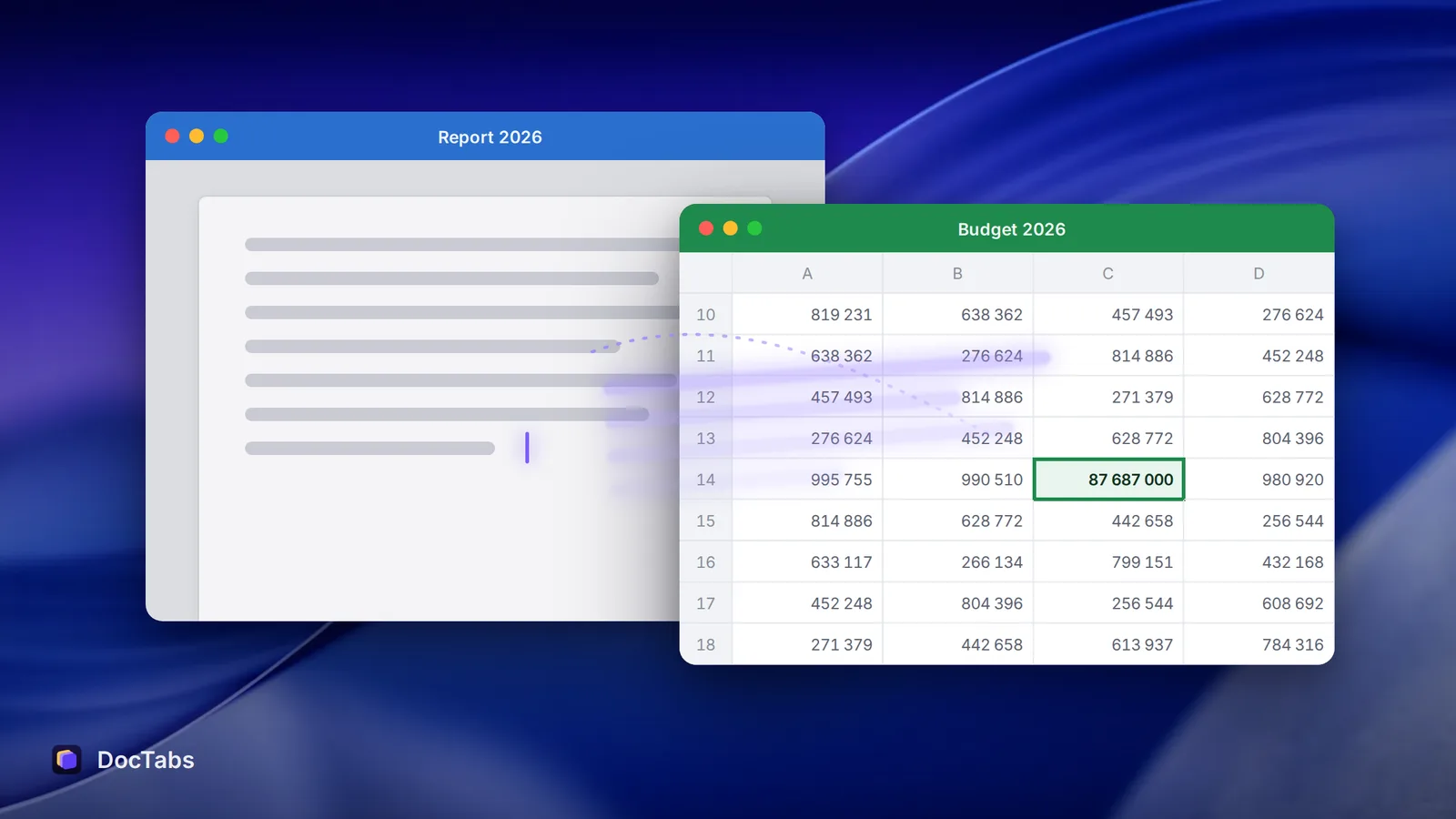
Word, Excel and PowerPoint on the Mac open every document in its own window. There are no tabs — ask on Microsoft’s own support forum how to merge Word windows, and the answer from a long-time Office expert is short: “Tabbed Browsing is not supported. Each document is contained within its own window.”
So with five or six files open, getting to the right one is a small skill of its own. macOS gives you several ways to do it. Here they are, from simplest to most visual.
1. The Window menu
How: in Word, Excel or PowerPoint, open Window in the menu bar and pick a file name.
Good at: it’s always there, and it lists every open document of that app by name.
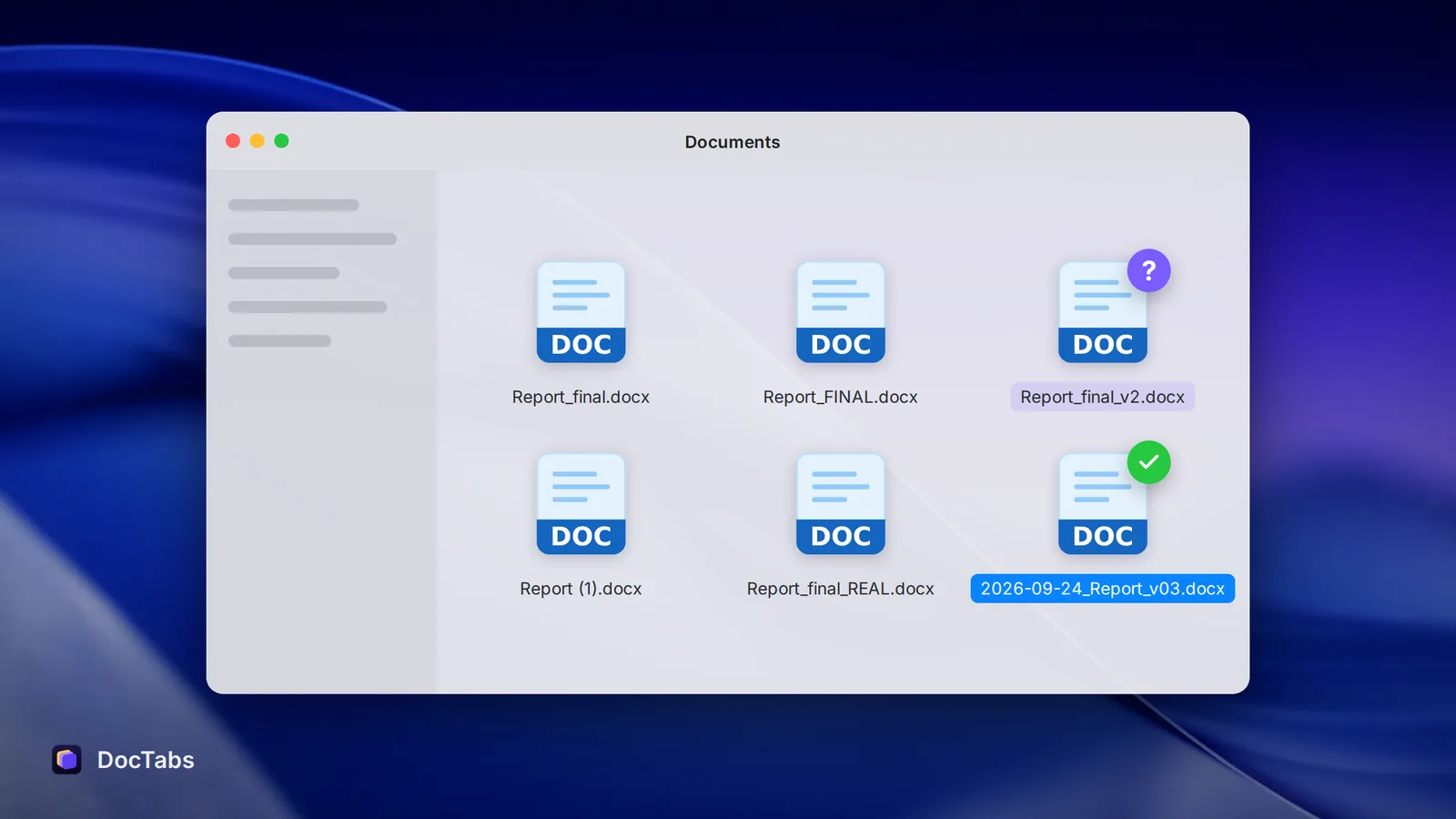
Falls short: it only shows one app at a time, so a Word report and the Excel sheet it quotes live in two different menus. And it shows names only — two files called Report 2026 from different folders look identical.
2. Command + backtick
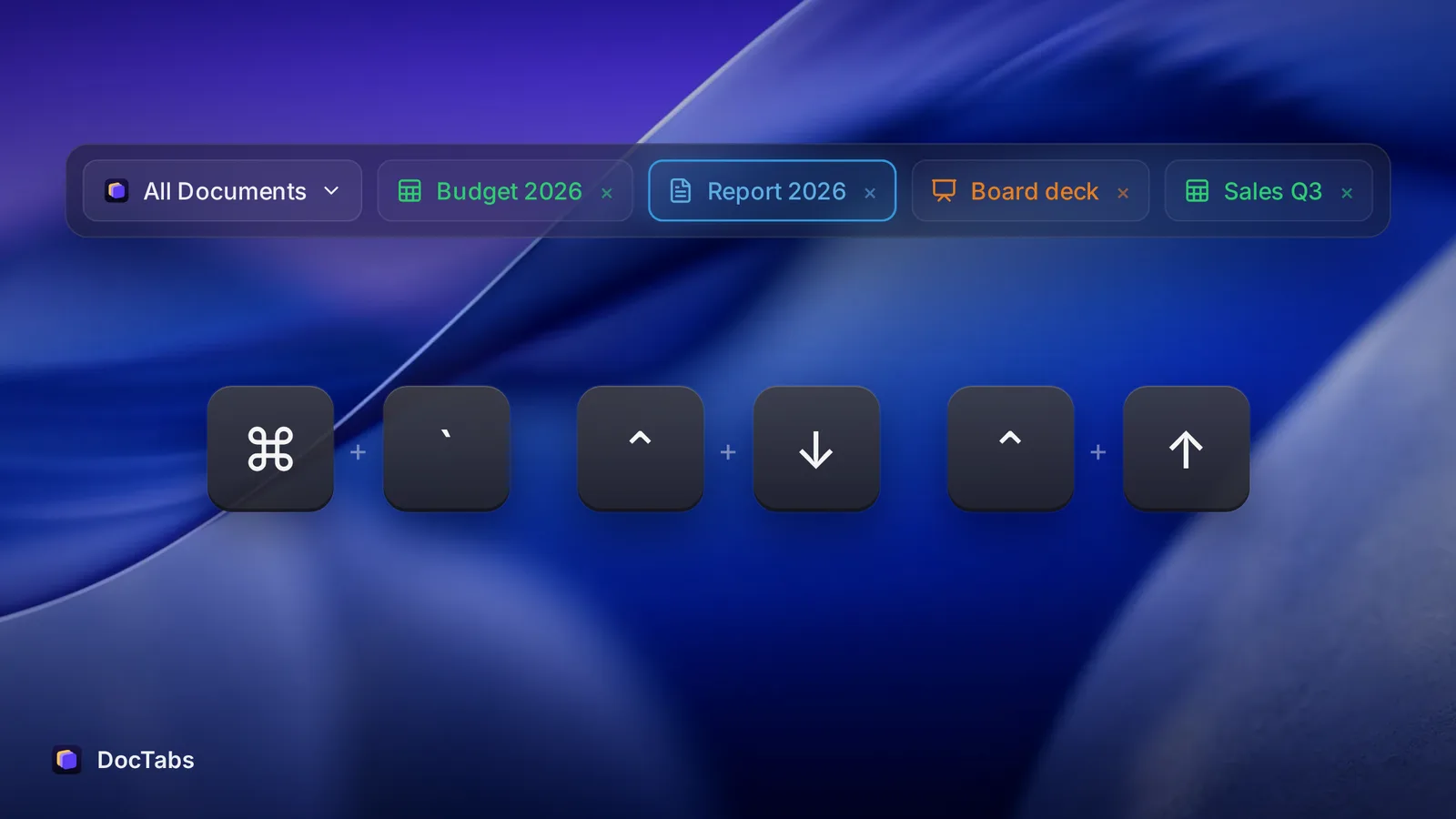
How: press ⌘ ` — the key above Tab — to switch between the windows of the app you’re using. Apple lists it among the standard Mac shortcuts.
Good at: speed. With two or three windows open, nothing is faster.
Falls short: you’re cycling blind. With six windows, you press it, look, press again, look again. And like the Window menu, it never leaves the current app.
Tip: if ⌘ ` does nothing, open System Settings → Keyboard → Keyboard Shortcuts → Keyboard and make sure Move focus to next window is turned on.
3. Application windows
How: press Control ↓ to show all windows of the front app side by side. You can also right-click the app’s icon in the Dock to see its open windows.
Good at: you finally see the documents, not just their names.
Falls short: thumbnails of text documents tend to look alike — a page of words is a page of words. Still one app at a time.
4. Mission Control
How: press Control ↑ or the Mission Control key, or swipe up with three fingers on the trackpad. Every open window of every app spreads out on the screen; click one to bring it forward.
Good at: the whole picture — Word, Excel and PowerPoint together.
Falls short: the whole picture is also everything else: browser windows, chats, mail, notes. On a busy day, finding one spreadsheet among thirty shrunken windows becomes a small game of hide-and-seek.
5. Stage Manager
How: turn it on in System Settings → Desktop & Dock → Desktop & Stage Manager. Your current window sits in the centre; recently used apps line up on the left. You can also arrange several apps together as a group.
Good at: focus. One task in front, the rest out of the way, and groups for things that belong together — say, a report and its budget.
Falls short: the strip on the left takes screen space, which matters on a laptop, and several windows of the same app stack into a single thumbnail.
Quick comparison
| Word, Excel and PowerPoint together | What you see | Steps | |
|---|---|---|---|
| Window menu | no | file names | open menu, read, click |
| Command + backtick | no | one window at a time | press until it’s the right one |
| Application windows | no | small previews | shortcut, look, click |
| Mission Control | yes | small previews of everything | shortcut, look, click |
| Stage Manager | yes, as groups | small previews | one click for recent apps |
And one more
None of the built-in ways shows every open Office document, from all three apps, by name, in one place you can click. That gap is exactly what we built DocTabs for: a single row of tabs above your documents, one click to bring any of them to the front, a filter when you only want Excel, and the folder name next to files that share a name.
Whichever you use, the rule of thumb is the same: the fewer steps and the less reading between you and the right document, the more of your attention is left for the work inside it.
Sources
- Microsoft Q&A, “How do I merge multiple windows on Mac on Word?”, answer by Bob Jones (Microsoft MVP), 6 September 2023.
- Apple Support, “Mac keyboard shortcuts”.
- Apple Support, “View open windows and spaces in Mission Control on Mac”.
- Apple Support, “Use Stage Manager on Mac”.